Add a New Academy to the Steamoji Dashboard and Marketing Website
One a new territory is sold and handed off to the ops team, a dedicated email address is created for that location (e.g. mountainview@steamoji.com).
Creating a New Academy in the Steamoji Dashboard
Then this location needs to be created in the Steamoji Dashboard system. Navigate to the 'Academy Info' link in the left-hand side bar, then click on the 'Create New Academy' button.
GENERAL
- Name (mandatory) -> this is the name of the territory
- Country & State/Province
- Stripe Connected Account -> needed for fund transfers
- Address 1/2
- City (mandatory for pre-open listings)
- Zip/Postal Code
- Contact Phone -> the business telephone of the business
- Contact Email -> the assigned Gmail address (e.g. mountainview@steamoji.com) used to receive incoming lead inquiries
- Number of Workstations -> used for the scheduling system
- Corporate Entity Name -> the legal name of the franchisee; used for invoices
- DBA Name -> the "doing business as" name of the franchisee (e.g. 'Steamoji Mountainview'); used for invoices
- Sales Tax Number -> used for invoices
- Tax Rate -> used for invoice generation
- Open Status. Options: Open, Coming Soon, In Development, Archived -> Coming Soon is the status when an address is known, In Development is the status when the territory is sold, but there is no address known
- Communications. Options: On, Off
- Tier. 1, 2, 3
- GTag
- Academy Icon (available on Edit only)
- Manaager Photo (available on Edit only)
CONTRACT INFORATION
- Franchise Start Date
- Franchise End Date
- Insurance. Options: Yes, No
- Lease Start Date
- Lease End Date
WEBSITE INFORMATION
- Latitude/Longitude -> GPS coordinates are required for the academy to show on the "Find an Academy" locations widget; see the "How to Get GPS Latitude & Longtitude" section below
- Website -> the dedicated academy page on the marketing site, e.g.
- Book Trial Link
- Facebook Page
- Instagram Handle
- Twitter Handle
- YouTube Handle
Email Marketing Copy
- Website Video Intro (YouTube Link)
- Manager First Name
- Manager Last Name
- Short Intro (200 Characters)
- Long Intro (500 Characters)
- Email Signature (available on Edit only)
- Banner Campaign. Options: Coming Soon, Evergreen, Camps
HOURS OF OPERATION
- Monday - Sunday
Once the known fields are entered then click the 'Save' button. Most fields can be edited afterwards.
Marketing Website > Dedicated Academy Page
- From dashboard academy page, click the
Preview Pagebutton to get the page url. - Unless the page is already created, you will see a 404 page.
- Copy the location slug from the "Not Seeing this Page" popup.
- Go to this link. (login required)
- Click the
Duplicate Pagelink from any existing location.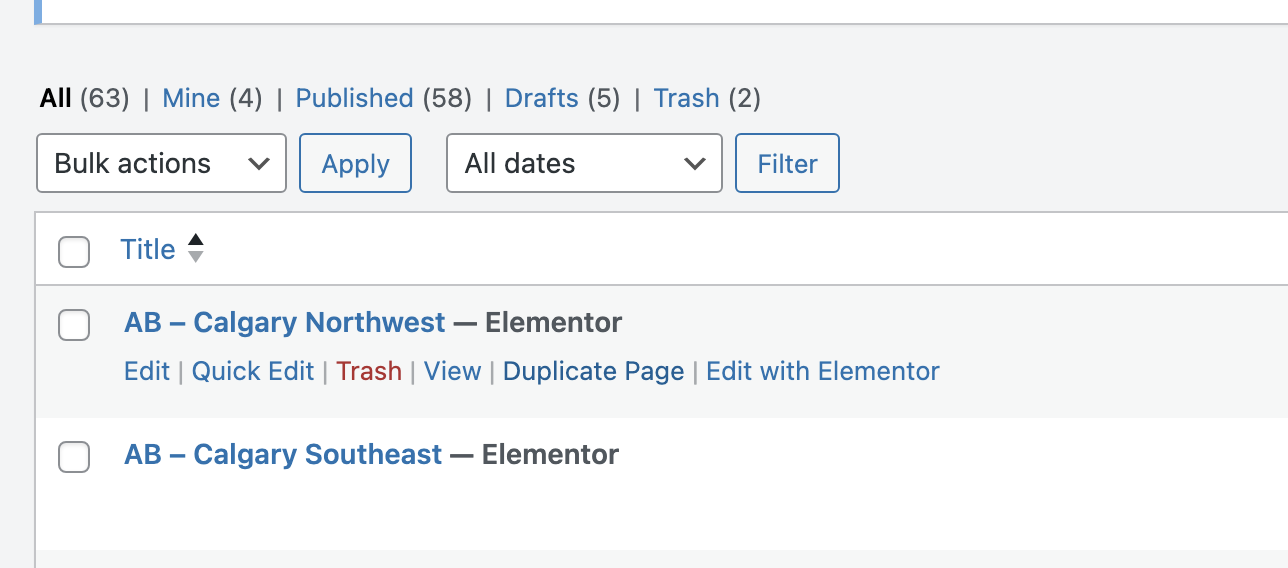
- Update the the location title
- Click on
Edit slugbutton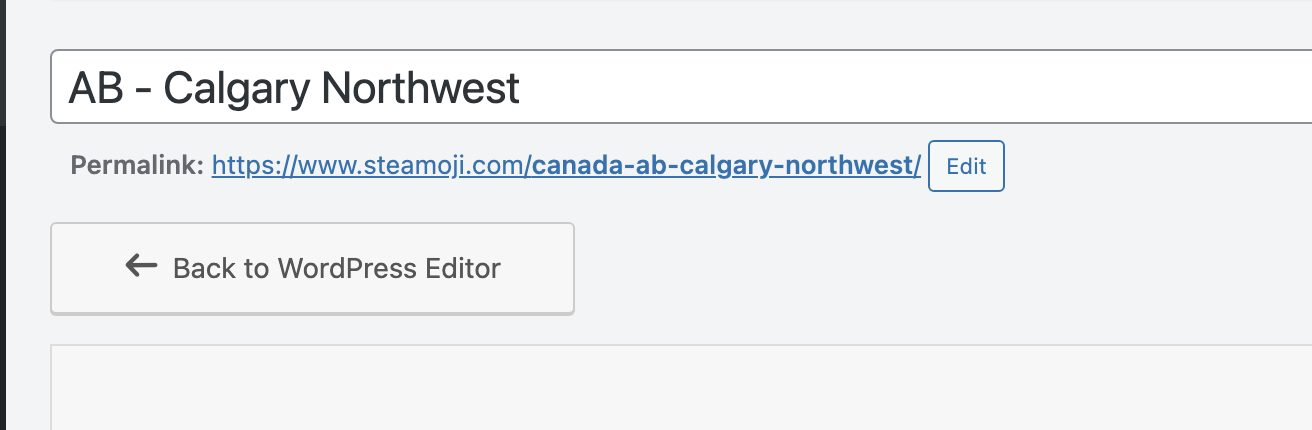
- Paste the slug copies from Step 3.
- Save the page
How to Get GPS Latitude & Longtitude
For Desktop (Computer)
- Open Google Maps in a web browser and enter the address.
- Press control and click (on Mac) on the location icon.
- A pop-up window will appear at the top, showing your latitude and longitude in decimal format.
- Copy these value and paste the first for latitude and the second for longtitude.
Academy camps page creation (Hank to update)
- Repeat steps 1-4 from
Academy page creation - Type
Campsin the search bar and search for camps - Repeat steps 5-8 from
Academy page creation